Search, changes and status
Three pages that are about the platform as a whole rather than about one object: finding something when you do not know where it is, seeing what has changed recently, and checking that the parts of the platform can reach each other.
Search
Section titled “Search”The search box sits in the dark header on every page. Type a term and press Enter; the results page has four tabs, and opens on the first one that found anything.
Fedora
Section titled “Fedora”Preserved resources, matched on their identifier in the underlying repository. The table gives the Fedora id, when the resource was created and last modified, its size and its content type, and a link that opens it in Browse in a new tab — new, so that your results are still there when you come back.
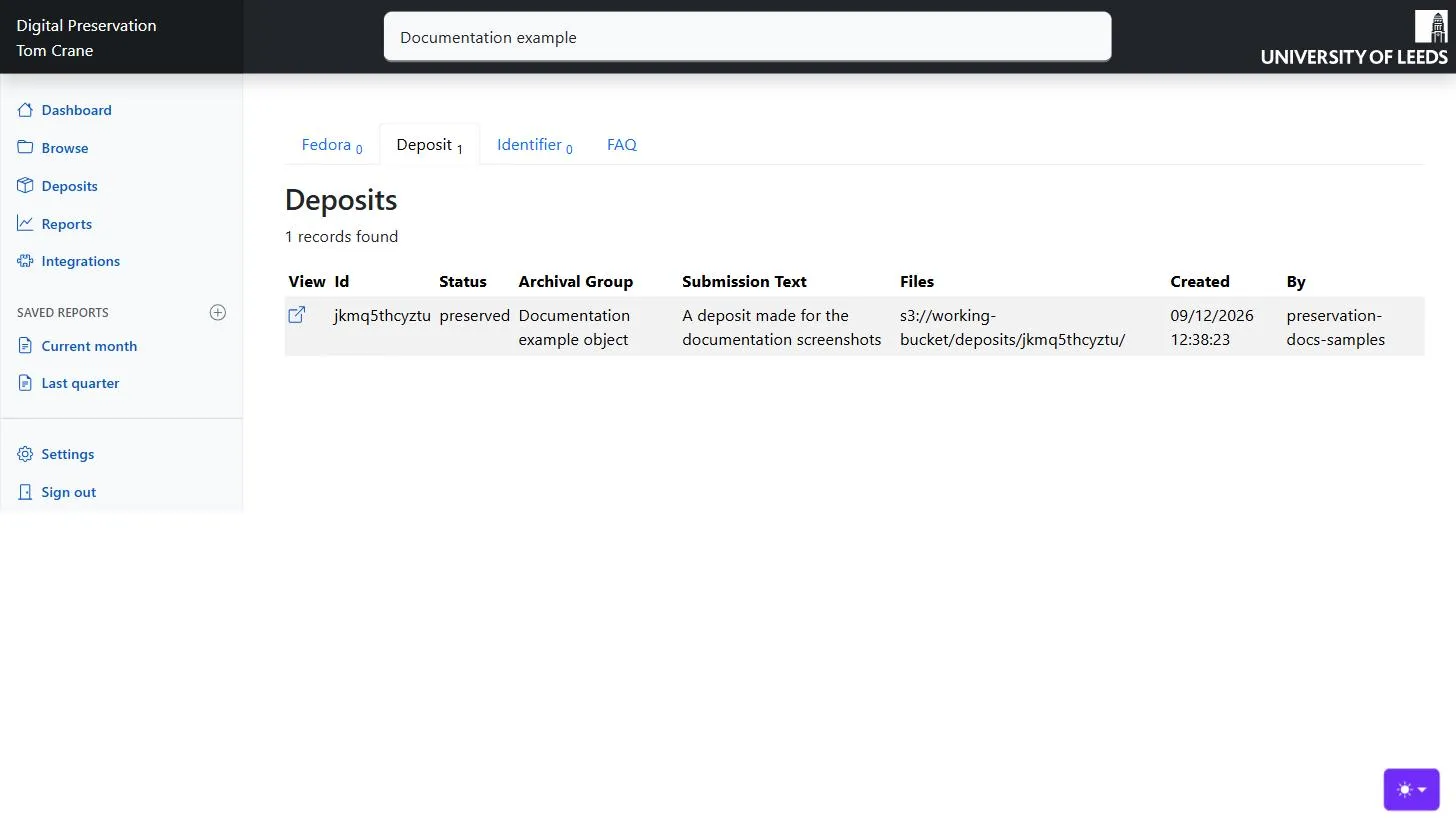
Deposit
Section titled “Deposit”Deposits, matched across four fields: the Archival Group name, the submission note, the Archival Group path, and the deposit’s own identifier. Each row shows the deposit id, its status, the object’s name, the note, the workspace location, and who created it when.
Identifier
Section titled “Identifier”A lookup rather than a search. The term is looked up in the Leeds identity service — first as an id, then as a catalogue IRN — and the first match is shown in full: id, title, catalogue IRN, catalogue API address, created and updated dates, description, EPrints id, IIIF manifest address, repository URI and status.
This is the quickest way to answer “does this catalogue record already have a digital object, and where is it?”. Matches are exact; there is no searching on title or description here.
A short, honest statement of what search can and cannot do, kept with the search rather than in documentation because it is the thing people want when a search disappoints them. In summary:
| Paging | 20 results at a time. |
| Sorting | Newest first, for Fedora and Deposit results. Not adjustable. |
| Case | Insensitive, for Fedora and Deposit results. |
| Partial matches | Supported for Fedora and Deposit results. |
AND, OR, NOT |
Not supported. |
| Wildcards | Not supported. |
| Identifiers | Exact matches only. |
| File contents | Not searched. |
Search terms are limited to 500 characters; anything longer is refused with a message rather than truncated.
Changes
Section titled “Changes”The Changes page shows the platform’s activity stream — the record of Archival Groups created and updated, in the IIIF Change Discovery format that downstream systems such as the IIIF builder poll to find out what to reprocess.
Changes in the sidebar opens the collection, at /changes/archivalgroups; the links on that page take you to the individual pages of activity.
The collection view shows the stream’s identifier, how many activities it holds in total, and links to its first and last pages. Start at the last page: activity is appended, so the most recent changes are at the end.
A page view lists the activities it holds, each with:
- its type —
CreateorUpdate; - a summary, when the event carries one;
- start and end times;
- the object it concerns: the type and URI of the Archival Group, plus any
seeAlsoreferences attached to it.
It is a plain rendering of the JSON rather than a report, and it is genuinely useful for one question: did the change I just preserved get announced? An import job run with the maintenance-only option deliberately does not appear here, which is the point of that option.
The status page
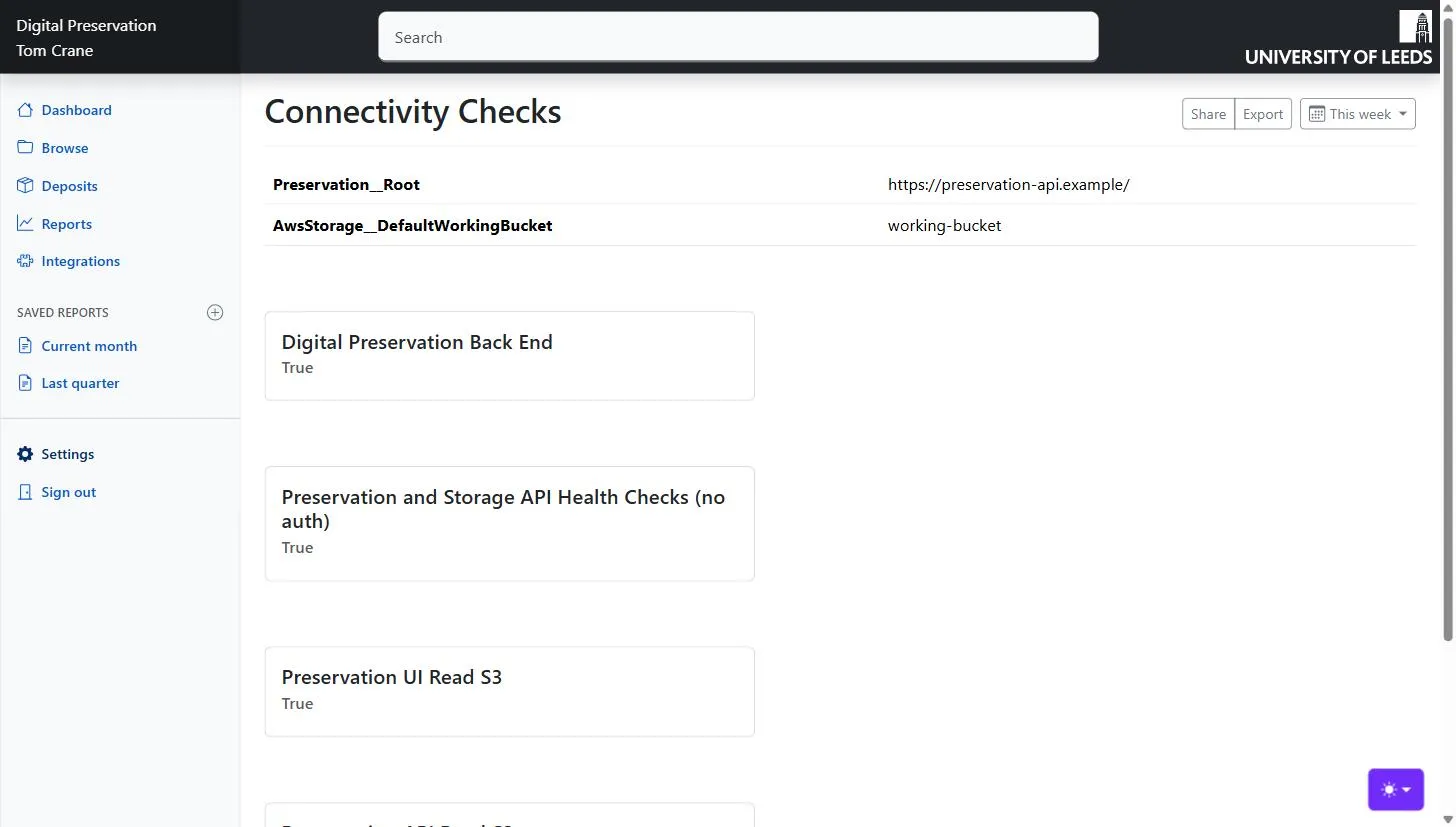
Section titled “The status page”Status in the sidebar opens the connectivity checks — the page is titled Connectivity Checks.
At the top it shows two configuration values the UI is running with: the address of the Preservation API it is talking to, and the default S3 bucket deposits are created in. If you are ever unsure whether you are on the development or production instance, this is where to look.
Below are the checks themselves, each a card with a name, whether it succeeded, and the error if it did not:
| Check | What it proves |
|---|---|
| Preservation API alive | The UI can reach the Preservation API with your credentials. |
| Preservation API alive (no auth) | The API is up at all, regardless of authentication. If this passes and the one above fails, the problem is authentication rather than the service. |
| UI can read S3 | This web application can reach deposit storage. |
| Preservation API can reach S3 | The API can reach deposit storage. If this fails, uploads and deposit listings will not work however healthy the API looks. |
| Storage API can reach S3 | The Storage API can reach the preservation storage. If this fails, import jobs will not run. |
The checks run when you load the page, so reloading re-runs them. Between them they cover most of “is it me, or is it broken?” — worth a look before reporting a fault.