

Browsing the repository
Browse shows the preserved repository as a tree you can walk: folders (Containers) holding more folders, and eventually Archival Groups — the preserved objects — each holding its own folders and files. It starts at /browse and every row is a link one level down.
Nothing here can be edited. The contents of an Archival Group only ever change by running an import job from a deposit. The two exceptions are organisational folders above Archival Groups, which you can create and delete from this page.
The listing
Section titled “The listing”Below the breadcrumb is a table of everything directly inside the folder you are looking at: child folders first, then files. The icon in the first column says what each row is — a plain folder, a box for an Archival Group, or a document for a file.
Which columns you see depends on where you are.
Outside an Archival Group — in the organisational part of the tree — the columns are path, title, last modified and by whom, created and by whom, and a deposits column. A box icon in that last column means there is an active deposit for that Archival Group; click it to go straight to the deposit rather than to the preserved object.
Inside an Archival Group, the last four columns change to type, PRONOM format, metadata, and a biohazard column for the virus scan. These come from the object’s METS file rather than from the repository itself, which is why they are only available inside an object.
The metadata column shows the access conditions, rights statement and record identifiers that apply to each file or folder. A value shown in bold italics is set on that item itself; an inherited value is shown the same way but in a muted colour. (The deposit file table draws the same distinction differently — there an inherited value stays hidden until you hover the row.) That distinction matters, and is explained in full on the deposits page, where you can also change these values.
Objects that do not exist yet
Section titled “Objects that do not exist yet”A folder listing can include rows for Archival Groups that have not been preserved yet. These are deposits whose intended Archival Group is in this folder: the path has been chosen but nothing has been imported, so there is nothing in the repository to link to. They show the deposit’s name (or (no name yet)) with dashes in the date columns, and every link on the row goes to the deposit.
They are a reminder that somebody is working on an object here. They disappear from the listing as soon as the object is actually preserved, at which point the real Archival Group takes their place.
The breadcrumb
Section titled “The breadcrumb”From the second level down, a breadcrumb above the listing shows the path you followed. The segment that is the Archival Group is highlighted in solid colour, and segments inside it in a lighter shade, so you can always see at a glance whether you are in the organisational tree or inside a preserved object.
Organisational folders
Section titled “Organisational folders”Two buttons appear above the listing only when they apply.
New Folder is offered when you are in the organisational part of the tree — never inside an Archival Group, where folders are created by import jobs. It asks for two things:
- a folder title, which may contain any characters, including spaces and non-Latin scripts;
- a folder path name, which becomes the last segment of the URL and is restricted to lower-case letters, digits, and
.,-and_.
The path name is suggested from the title as you type, and the form refuses characters that are not permitted rather than letting you submit something that will be rejected. Once you edit the path name yourself it stops following the title.
Delete Container appears only for a folder that is completely empty and is not inside an Archival Group. The dialogue offers a Purge tick box, on by default:
- purged, the path is freed and something else can be created there later;
- not purged, the folder is gone but the path stays reserved — a tombstone — and nothing can be created at it until it is purged.
See Creating a Container for what this does underneath.
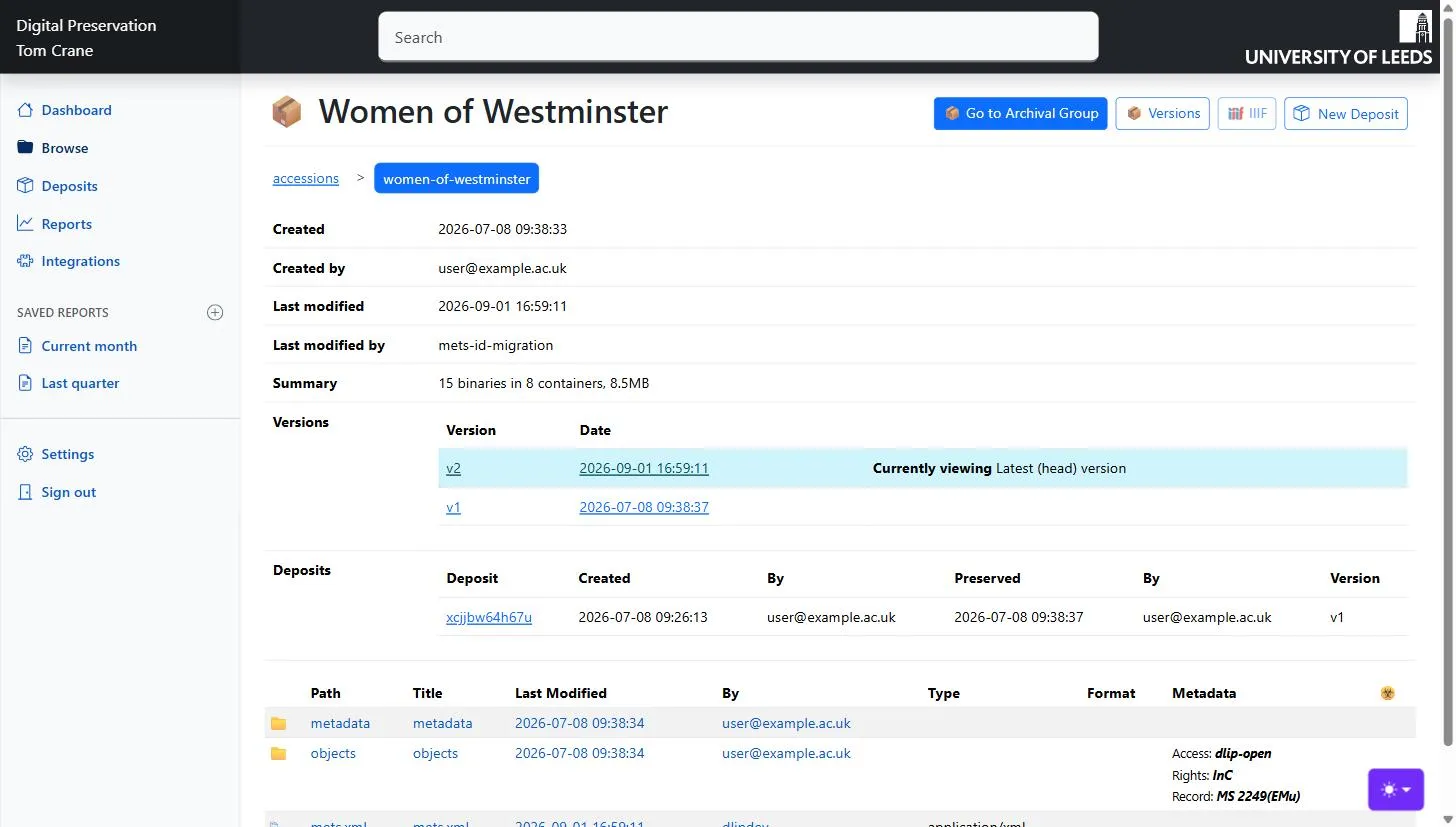
An Archival Group
Section titled “An Archival Group”Landing on an Archival Group gives you a summary of the object rather than a file listing.
| Row | What it tells you |
|---|---|
| Previous names | Names this object has had before, if it has been renamed. |
| Created / Created by | When the object first entered the repository, and who put it there. |
| Last modified / by | The most recent version, and who made it. |
| Summary | How many files, in how many folders, and the total size. |
| Versions | Every version of the object. |
| Deposits | Every deposit ever made for this object, whether it was preserved or not. |
The Versions table lists each OCFL version with its date; both are links to the versions page. The version you are looking at and the latest (head) version are marked and highlighted.
The Deposits table is the object’s working history: each deposit, when it was created and by whom, when it was preserved and by whom, and which version resulted. If a deposit is still open and has an import job that has not finished, the row says so in orange — useful when you are wondering why the object does not show a change you know somebody made.
To get at the object’s files, use the folder rows in the tree below it, or use the buttons above the summary:
- Versions opens the OCFL storage view.
- New Deposit starts a deposit for this object, optionally exporting its current contents into the workspace. See Creating a deposit.
- IIIF opens the object in an external IIIF viewer. It is only enabled for objects whose IIIF address the platform can predict; for everything else the button is there but greyed out, and hovering over it says why: “No IIIF manifest address is known for objects in this location.”
Inside the object, Go to Archival Group takes you back to this summary from any depth.
Opening the METS file
Section titled “Opening the METS file”Clicking the object’s mets.xml in the listing does not open a file page — it returns the METS document itself, as XML, which your browser will display or download. It is the preserved METS for the version you are looking at. What that document contains is described in the METS section.
A preserved file
Section titled “A preserved file”A file row opens a page about that one Binary, combining what the repository knows with what the object’s METS records about it.
| Row | Where it comes from |
|---|---|
| Name | The original file name, with the URL-safe form beneath it when the two differ. |
| Path | Where the file sits inside the object. |
| Content type | The media type the platform recorded at import. |
| File format | The PRONOM identification from the METS. |
| Virus scan | The scan result recorded in the METS, including when it ran and against which definitions. |
| Size, Digest | The size in bytes and the SHA-256 checksum. |
If the checksum held by the repository and the one in the METS disagree, the page says so in red. That should never happen, and is worth reporting.
Below the summary come the metadata sections, when there is anything to show: File format (the full set of fields the identification tool reported), Viruses (the ClamAV result), and Exif (embedded metadata read out of the file itself). Files that no tool has looked at have none of these.
The page also shows the access conditions, rights statement and record identifiers for the file, each twice: the explicit value set on the file itself, and the evaluated value that actually applies after inheritance.
Versions and OCFL storage
Section titled “Versions and OCFL storage”The Versions button on an Archival Group opens a page about one version of the object, and about where its files actually live.
At the top, the versions table again — every version, its OCFL label (v1, v2…), its Memento timestamp and its date — with the version you are viewing and the head version marked. Clicking any row switches to that version. The page says plainly whether you are looking at the current version or a previous one.
Below that is the storage map: every file in the version, with
- its path inside the object,
- the first eight characters of its SHA-256 (hover for the whole thing),
- the version the bytes actually belong to,
- and the versioned path they are stored at.
The third column is the interesting one. OCFL does not copy a file that has not changed, so a file added in v1 and untouched since still shows v1 here even when you are looking at v4. Reading down that column tells you what each version genuinely changed. See Versions and the storage map for the underlying model.
New Deposit from vN creates a deposit and exports that version’s content into it. Exporting an old version is allowed, and the dialogue warns you when that is what you are about to do — if you then preserve it, you are making the old content into a new version.