

Browse
Walk the repository, look at an Archival Group’s files and versions, inspect a single preserved file and the metadata held about it, and see the OCFL storage behind it.
The Preservation UI is the web application library staff use to work with the platform: to look at what has been preserved, to assemble files into a Deposit, to describe them, and to preserve them as a new version of an Archival Group.
It is a client of the Preservation API and nothing more. Everything it does, it does by calling that API — creating deposits, editing METS, running import jobs — so anything you can do here you could also do from a script, and anything done from a script shows up here. The UI’s job is to make the common tasks quick and to stop you doing things that will not work.
Throughout this documentation the UI is assumed to be at https://preservation.example. Your institution’s instance will be on its own hostname.
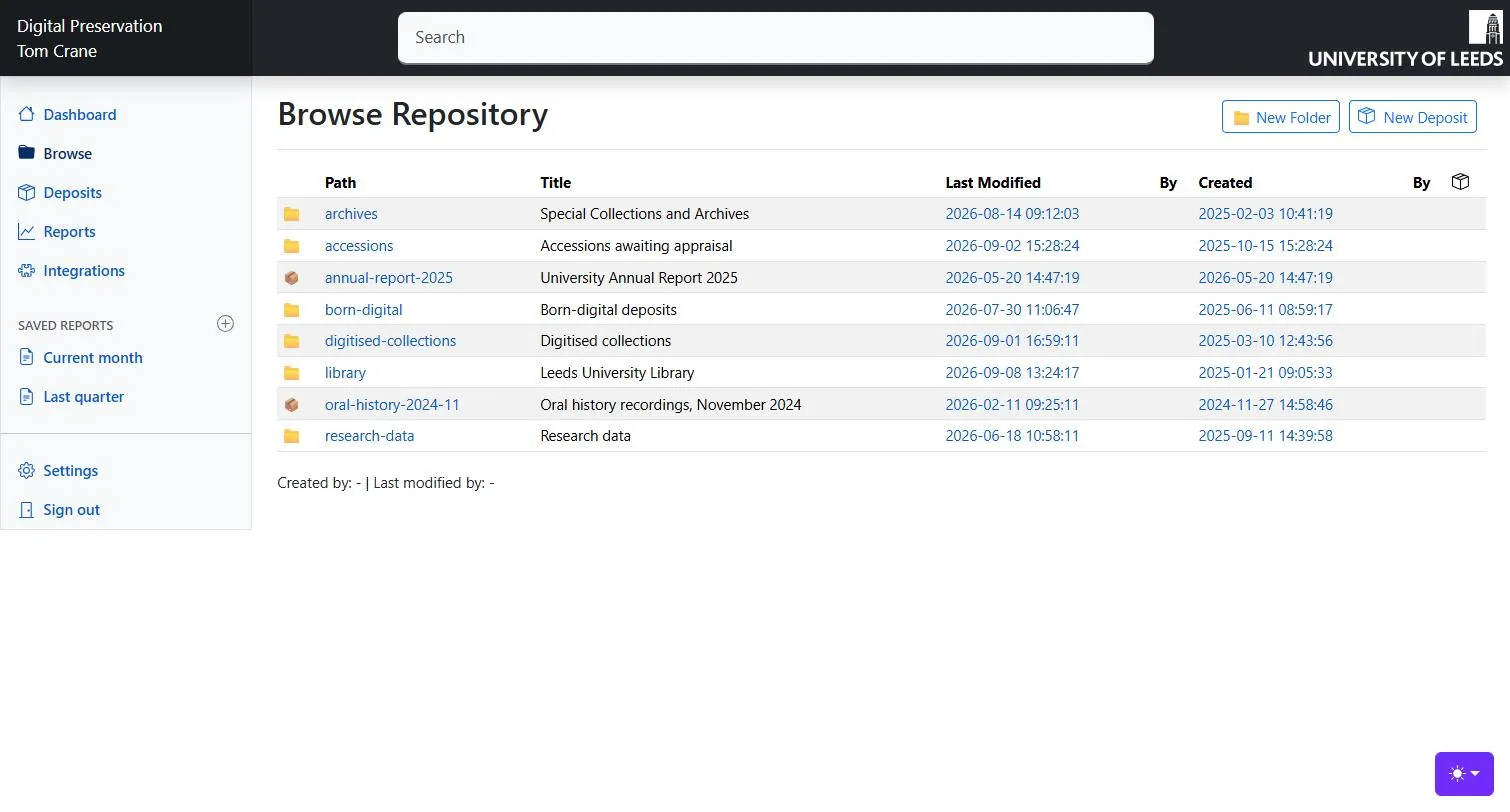
The UI signs you in with your institutional account (Microsoft Entra ID). There is no separate username or password for the platform, and no anonymous access: every page requires a signed-in user.
Your name appears under Digital Preservation at the top left. Everything you do is recorded against you — a deposit you create shows you as its creator, an import job you run records you as the agent who preserved that version, and a lock you take is held in your name. See Agents for how those identities are recorded.
Sign out is at the bottom of the sidebar. It signs you out of this browser for all applications using the same account, not just this one. Sessions also expire after 48 hours of inactivity, after which you are asked to sign in again.
Every page has the same frame.
| Part of the screen | What it does |
|---|---|
| The search box in the dark header | Searches preserved files, deposits and identifiers. See Search and changes. |
| Dashboard | The home page. A short list of links; there is not much on it. |
| Browse | The preserved repository, as a tree of folders and objects. See Browsing the repository. |
| Deposits | The list of deposits, and the way in to any one of them. See Working with deposits. |
| Changes | The platform’s activity stream: what has been preserved recently. See Search and changes. |
| Status | The connectivity checks. See Search and changes. |
| The theme button, bottom right | Light, dark, or follow the operating system. |
Browse
Walk the repository, look at an Archival Group’s files and versions, inspect a single preserved file and the metadata held about it, and see the OCFL storage behind it.
Deposit
Create a working area, upload files into it, arrange them into folders, record access conditions and rights, run the characterisation pipeline, and keep the METS file in step with the files.
Preserve
Generate the difference between a deposit and the Archival Group it is for, check what it proposes to do, and run it — producing a new version.
Check
Look at what has changed recently, search across preserved files and deposits, and confirm the platform can reach its own storage.
A few things in the UI are switched on and off per instance, so a screen described here may be missing from the one in front of you. Where that is the case this documentation says so, but the two to know about are:
| Feature | What it controls |
|---|---|
FeatureFlags:ShowPipeline |
The Run pipeline and Stop pipeline run actions on a deposit. Off by default. |
FeatureFlags:ShowNormaliseMetsIds |
The Normalise METS IDs action, and the matching “maintenance only” option when running an import job. Off by default; it exists for a one-off migration rather than for everyday use. It needs the Preservation API’s FeatureFlags:EnableMetsIdNormalisation on as well: with only this one on, the action is offered and then refused. |
If an action this documentation mentions is not in your Actions menu, that is usually why.
The UI reports problems as coloured banners at the top of the page, above the content: red for a failure, green for something that worked. They come straight from the Preservation API, Most come straight from the Preservation API. A few are the UI’s own: “There is already an ACTIVE deposit for the archival group” is checked in the UI before the API is called, so its wording differs slightly from the API’s answer to the same situation. Most are dismissible; they do not persist across a page load.
A banner that mentions a status code is worth reading carefully — a 409 Conflict usually means somebody else got there first (a lock, or a deposit that already exists), not that you did anything wrong.